> ## Documentation Index
> Fetch the complete documentation index at: https://docs.supplier-connect.io/llms.txt
> Use this file to discover all available pages before exploring further.
# Choose a portal and switch modes
> Pick the portal you start in, add a second mode later, and switch between Supplier and Client.
## Choose a portal
This step is only for companies that chose **Both**.
When both profiles are done, you see **You're all set!**.
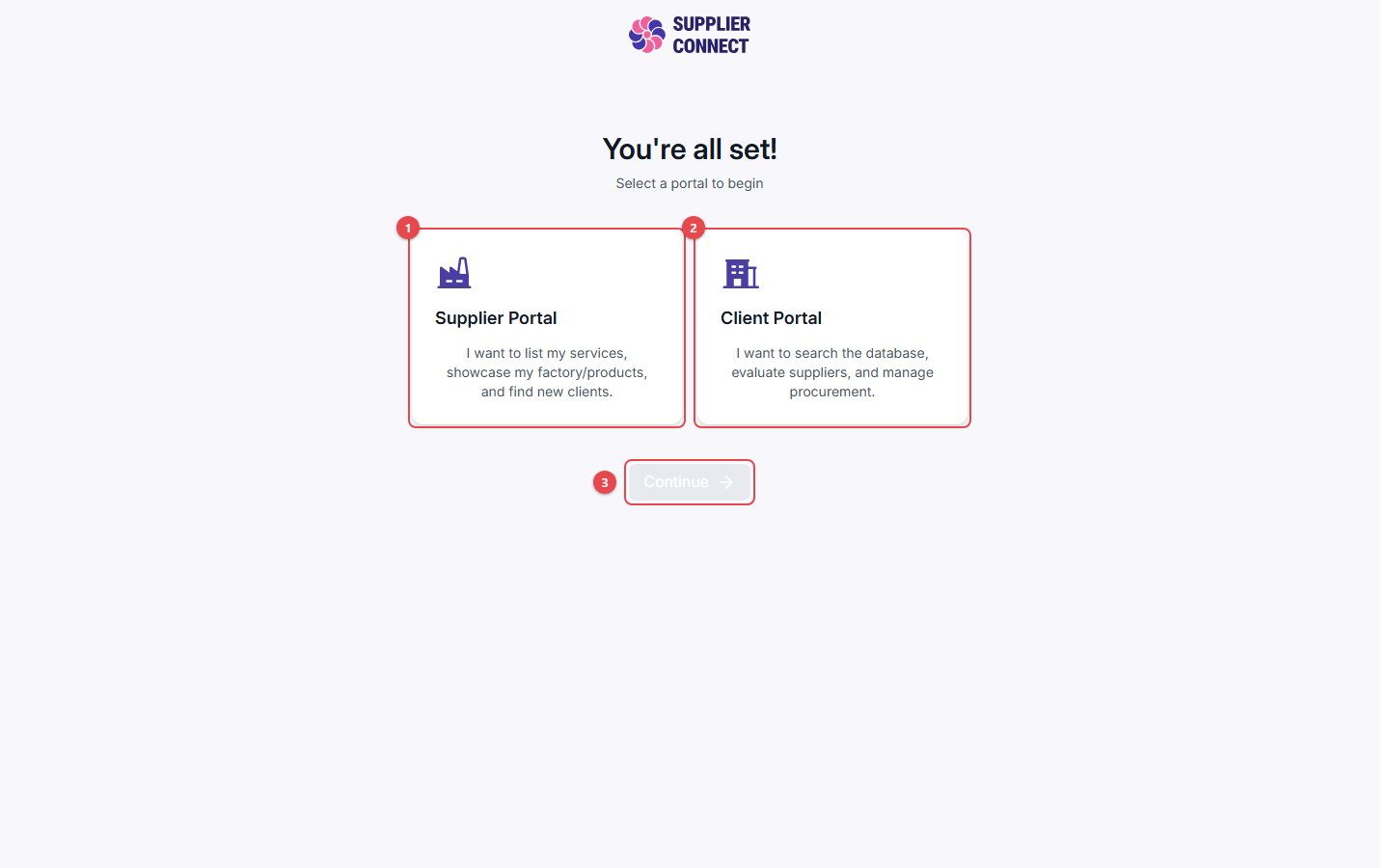 1. **Supplier Portal**: start in Supplier mode.
2. **Client Portal**: start in Client mode.
3. Click **Continue**. You can switch modes at any time from the sidebar.
## Switching modes later
* **Add the other mode:** if your company is Supplier-only or Client-only, click **Create Client profile** or **Create Supplier profile** in the navigation. This runs the setup for that mode. Your existing profile and connections are not affected.
* **Switch modes:** once you have both modes, use **Switch to Supplier** or **Switch to Client** in the navigation.
This documentation is built and hosted on [Mintlify](https://mintlify.com), a developer documentation platform.
1. **Supplier Portal**: start in Supplier mode.
2. **Client Portal**: start in Client mode.
3. Click **Continue**. You can switch modes at any time from the sidebar.
## Switching modes later
* **Add the other mode:** if your company is Supplier-only or Client-only, click **Create Client profile** or **Create Supplier profile** in the navigation. This runs the setup for that mode. Your existing profile and connections are not affected.
* **Switch modes:** once you have both modes, use **Switch to Supplier** or **Switch to Client** in the navigation.
This documentation is built and hosted on [Mintlify](https://mintlify.com), a developer documentation platform.