> ## Documentation Index
> Fetch the complete documentation index at: https://docs.supplier-connect.io/llms.txt
> Use this file to discover all available pages before exploring further.
# Find your way around
> What each item in the Supplier Connect sidebar does.
The sidebar on the left is collapsed to icons by default. Click the **›** arrow at the top to show the labels.
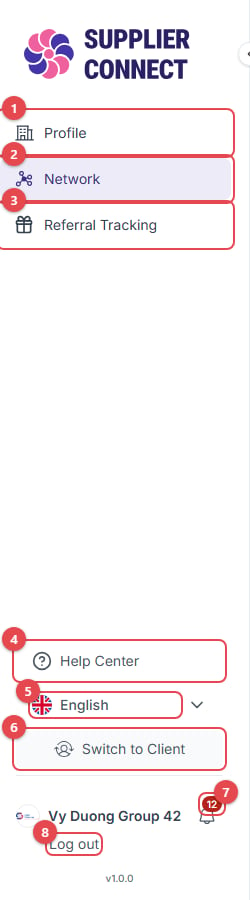 1. **Profile**: your company profile (Supplier mode). In Client mode the menu shows **Explore**, **My Network**, **Profile** and **Referral Tracking**.
2. **Network**: your connections with clients.
3. **Referral Tracking**: [invite companies to the platform](/account/referral-tracking).
4. **Help Center**: [send a question to the support team](/account/contact-support).
5. **Language**: switch between English and Tiếng Việt.
6. **Switch to Client** / **Switch to Supplier**: change mode. Companies with only one mode see **Create Client profile** / **Create Supplier profile** here instead. See [Switching modes later](/onboarding/switch-modes#switching-modes-later).
7. **Notifications**: the bell shows the number of unread notifications.
8. **Log out**. Click your **company name** above it to open **Manage organization** and **Change password**.
This documentation is built and hosted on [Mintlify](https://mintlify.com), a developer documentation platform.
1. **Profile**: your company profile (Supplier mode). In Client mode the menu shows **Explore**, **My Network**, **Profile** and **Referral Tracking**.
2. **Network**: your connections with clients.
3. **Referral Tracking**: [invite companies to the platform](/account/referral-tracking).
4. **Help Center**: [send a question to the support team](/account/contact-support).
5. **Language**: switch between English and Tiếng Việt.
6. **Switch to Client** / **Switch to Supplier**: change mode. Companies with only one mode see **Create Client profile** / **Create Supplier profile** here instead. See [Switching modes later](/onboarding/switch-modes#switching-modes-later).
7. **Notifications**: the bell shows the number of unread notifications.
8. **Log out**. Click your **company name** above it to open **Manage organization** and **Change password**.
This documentation is built and hosted on [Mintlify](https://mintlify.com), a developer documentation platform.