> ## Documentation Index
> Fetch the complete documentation index at: https://docs.supplier-connect.io/llms.txt
> Use this file to discover all available pages before exploring further.
# Create an account
> Sign up for Supplier Connect, verify your email, sign in, and reset a forgotten password.
## Sign up
Open Supplier Connect and click **Sign up**. Each number in the list matches a numbered field in the screenshot.
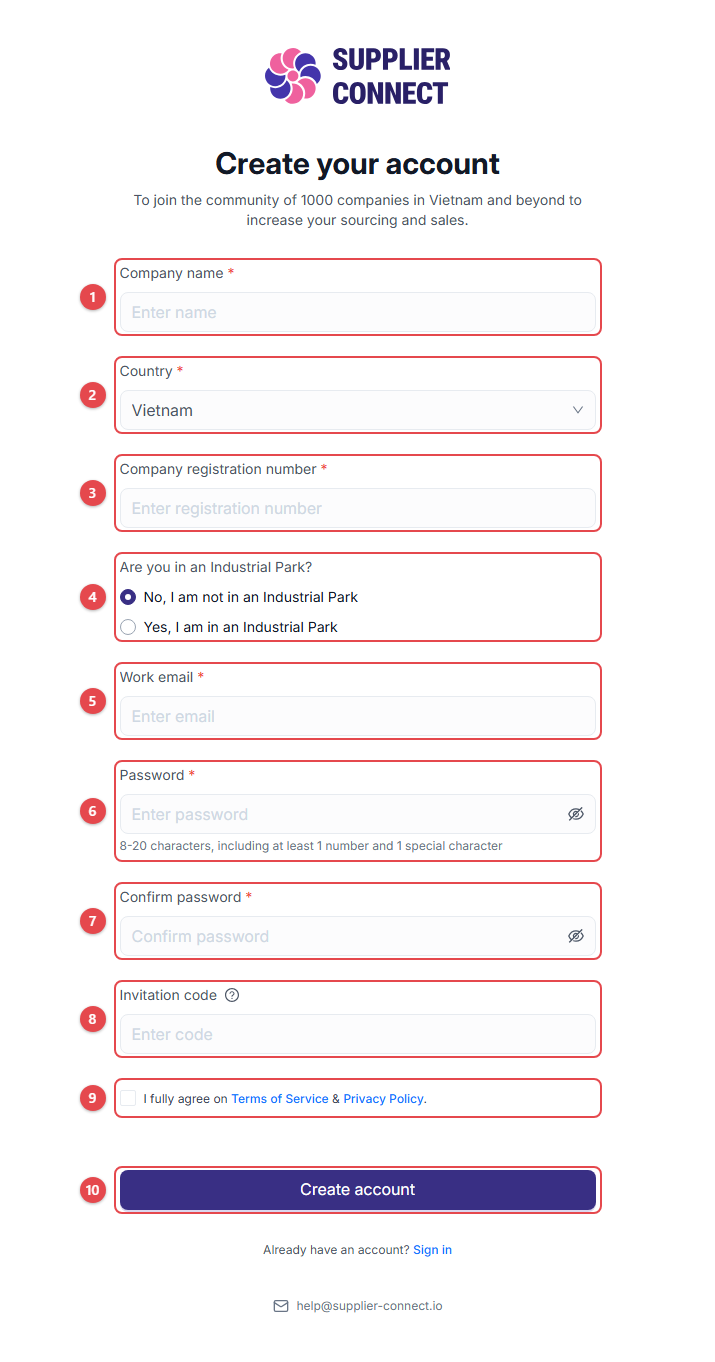 1. **Company name**: your company's legal name.
2. **Country**: where the company is registered.
3. **Company registration number**: up to 50 characters.
4. **Are you in an Industrial Park?** If you choose *Yes*, also enter the **Industrial Park name**.
5. **Work email**: use your company email. It becomes your login.
6. **Password**: 8–20 characters, including at least 1 number and 1 special character.
7. **Confirm password**: type the same password again.
8. **Invitation code** (optional): if another company invited you, enter their code to be connected straight away.
9. Tick the box to accept the **Terms of Service & Privacy Policy**.
10. Click **Create account**.
Next, check your inbox and enter the **6-digit verification code**. If it hasn't arrived after a minute, check your spam folder or click **Resend code**.
A company can only be registered once per country and registration number. If you see *"A company with the same country and company registration number already exists"*, a colleague has probably registered already. Ask them, or [contact support](/account/contact-support).
## Sign in
1. **Company name**: your company's legal name.
2. **Country**: where the company is registered.
3. **Company registration number**: up to 50 characters.
4. **Are you in an Industrial Park?** If you choose *Yes*, also enter the **Industrial Park name**.
5. **Work email**: use your company email. It becomes your login.
6. **Password**: 8–20 characters, including at least 1 number and 1 special character.
7. **Confirm password**: type the same password again.
8. **Invitation code** (optional): if another company invited you, enter their code to be connected straight away.
9. Tick the box to accept the **Terms of Service & Privacy Policy**.
10. Click **Create account**.
Next, check your inbox and enter the **6-digit verification code**. If it hasn't arrived after a minute, check your spam folder or click **Resend code**.
A company can only be registered once per country and registration number. If you see *"A company with the same country and company registration number already exists"*, a colleague has probably registered already. Ask them, or [contact support](/account/contact-support).
## Sign in
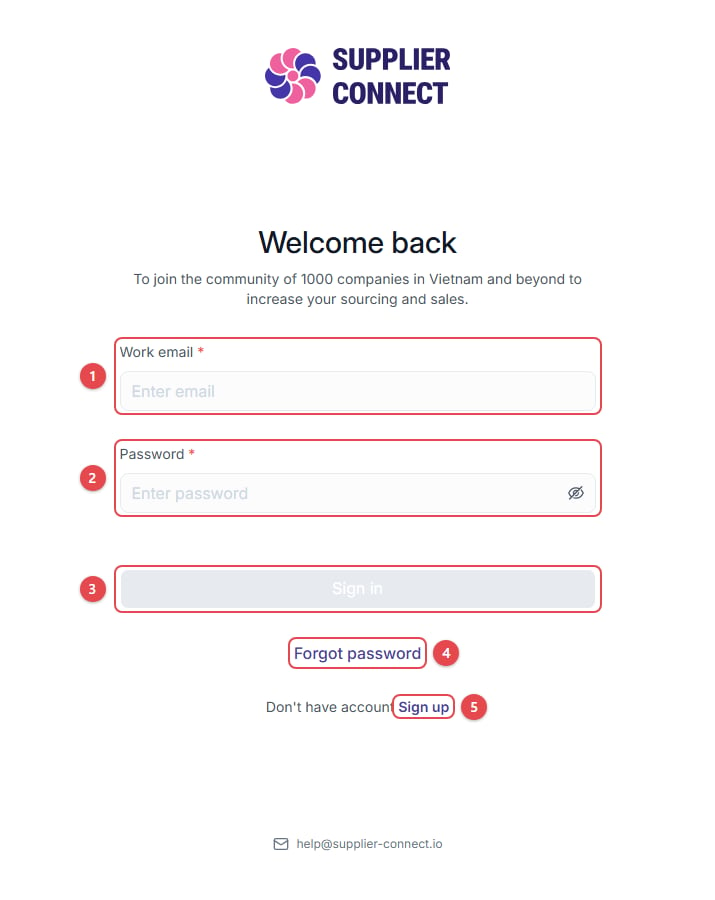 1. **Work email**
2. **Password**
3. Click **Sign in**.
4. **Forgot password**: reset your password (see below).
5. **Sign up**: create a new account.
## Forgot your password?
1. **Work email**
2. **Password**
3. Click **Sign in**.
4. **Forgot password**: reset your password (see below).
5. **Sign up**: create a new account.
## Forgot your password?
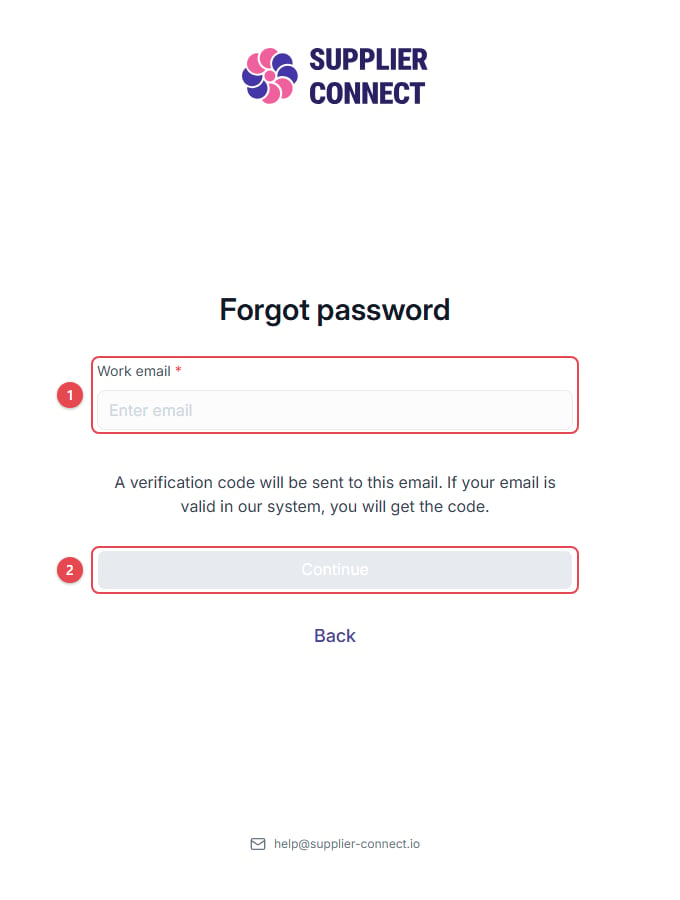 1. Enter your **Work email**.
2. Click **Continue**.
3. Enter the code we email you.
4. Set a **New password** and **Confirm password**.
This documentation is built and hosted on [Mintlify](https://mintlify.com), a developer documentation platform.
1. Enter your **Work email**.
2. Click **Continue**.
3. Enter the code we email you.
4. Set a **New password** and **Confirm password**.
This documentation is built and hosted on [Mintlify](https://mintlify.com), a developer documentation platform.